A visual editor for HTML files · free to try in your browser

Stop prompting.
Click the thing and change it.

AI writes a page in seconds. Then you spend an hour asking it to move one heading. Open the same file here instead: click what you want, change it, save. It saves plain HTML — the same file, nothing added.

Let's test See how it works Nothing is uploaded. Your file stays on your computer.
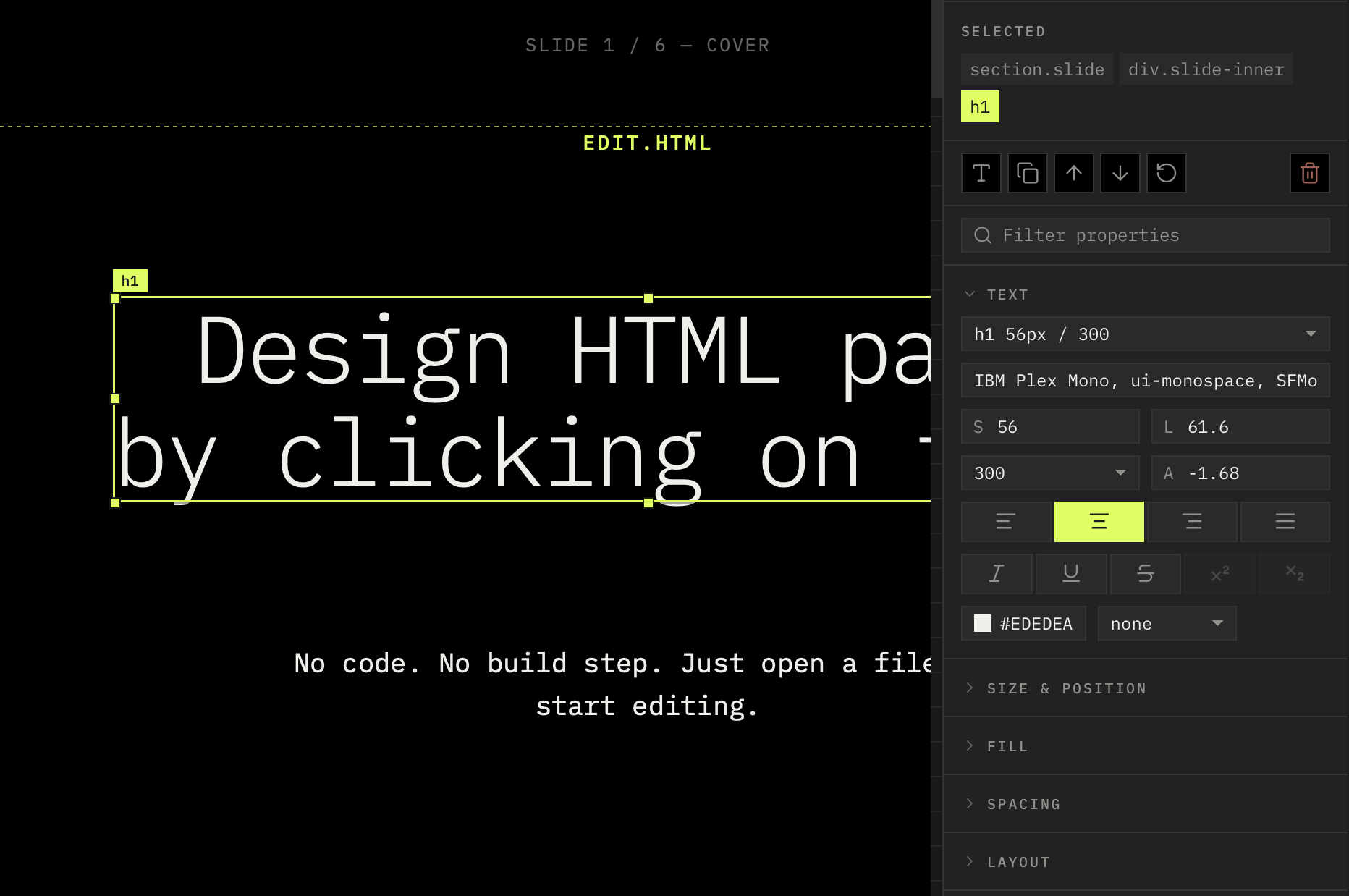
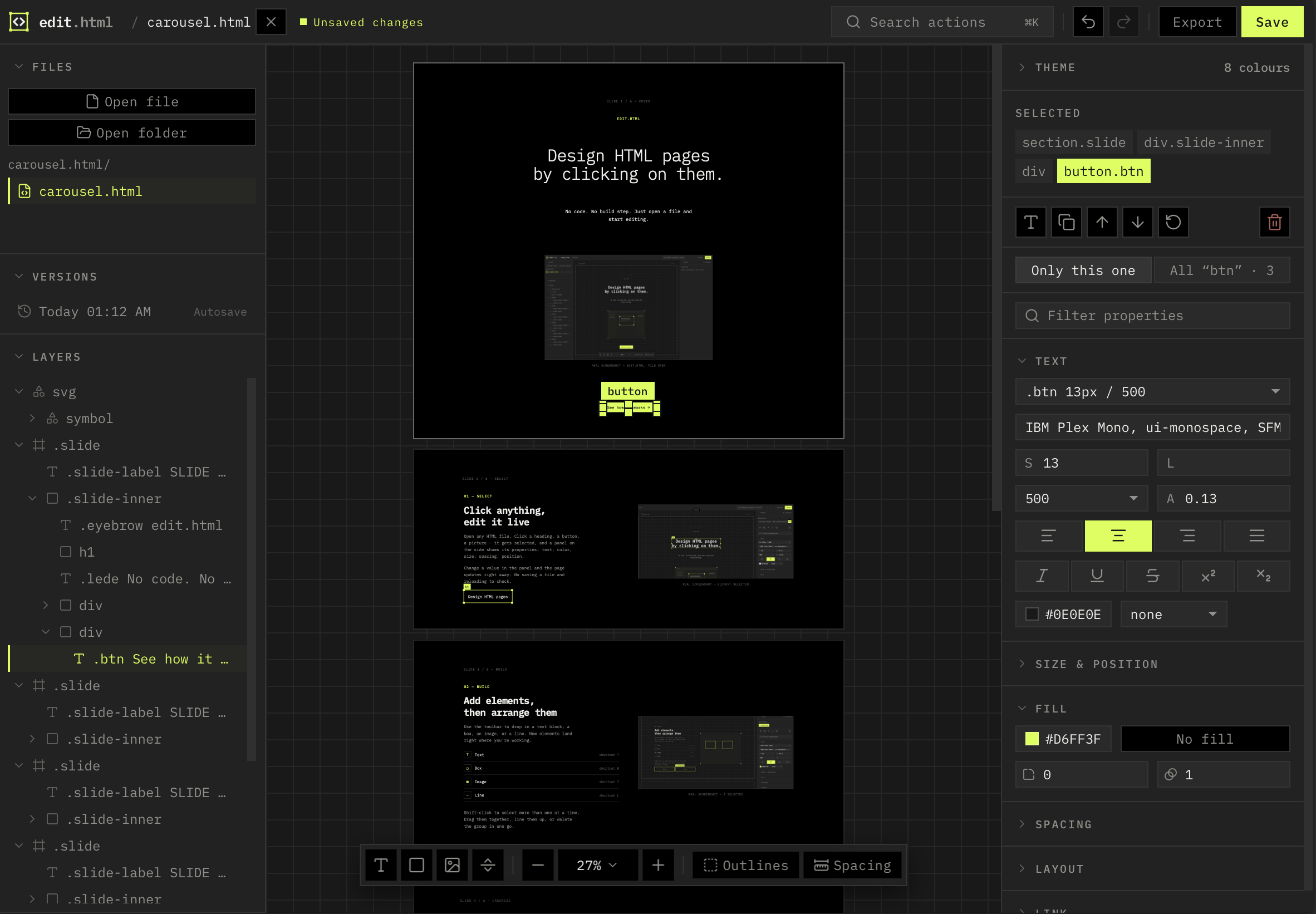
edit.html the editor with a page open
The edit.html editor with a page open
Screenshot — the editormedia/editor.jpg · 2400 × 1500

How it works

Three steps. That is the whole thing.

No account, no project setup, no build step. You are editing the real file from the first click.

01

Open

Pick an HTML file from your computer. It opens as the page it is, with its own fonts, images and styles.

02

Click and change

Click any element. Change the words, the size, the colour, the spacing. Drag it somewhere else. Add text, boxes, images and lines.

03

Save or export

Save writes the HTML back. Export gives you PNG, WebP, JPEG or a sharp PDF.

What it does

Feels like a design tool. Works on real code.

Everything here edits the actual HTML. There is no separate project file and no export step to get your page back.

Every property, in one panel.

Select something and the panel shows what it is made of: text, size, spacing, colour, border, position. Change a number and the page changes with it.

  • Text: font, size, weight, line height, letter spacing, alignment
  • Bold, italic, underline, strikethrough, superscript, subscript
  • Padding, margin, width, height, corners, borders and shadows
Properties panel
The properties panel
Screenshot — properties panelmedia/properties.jpg · 1600 × 1200

Change one, or change all of them.

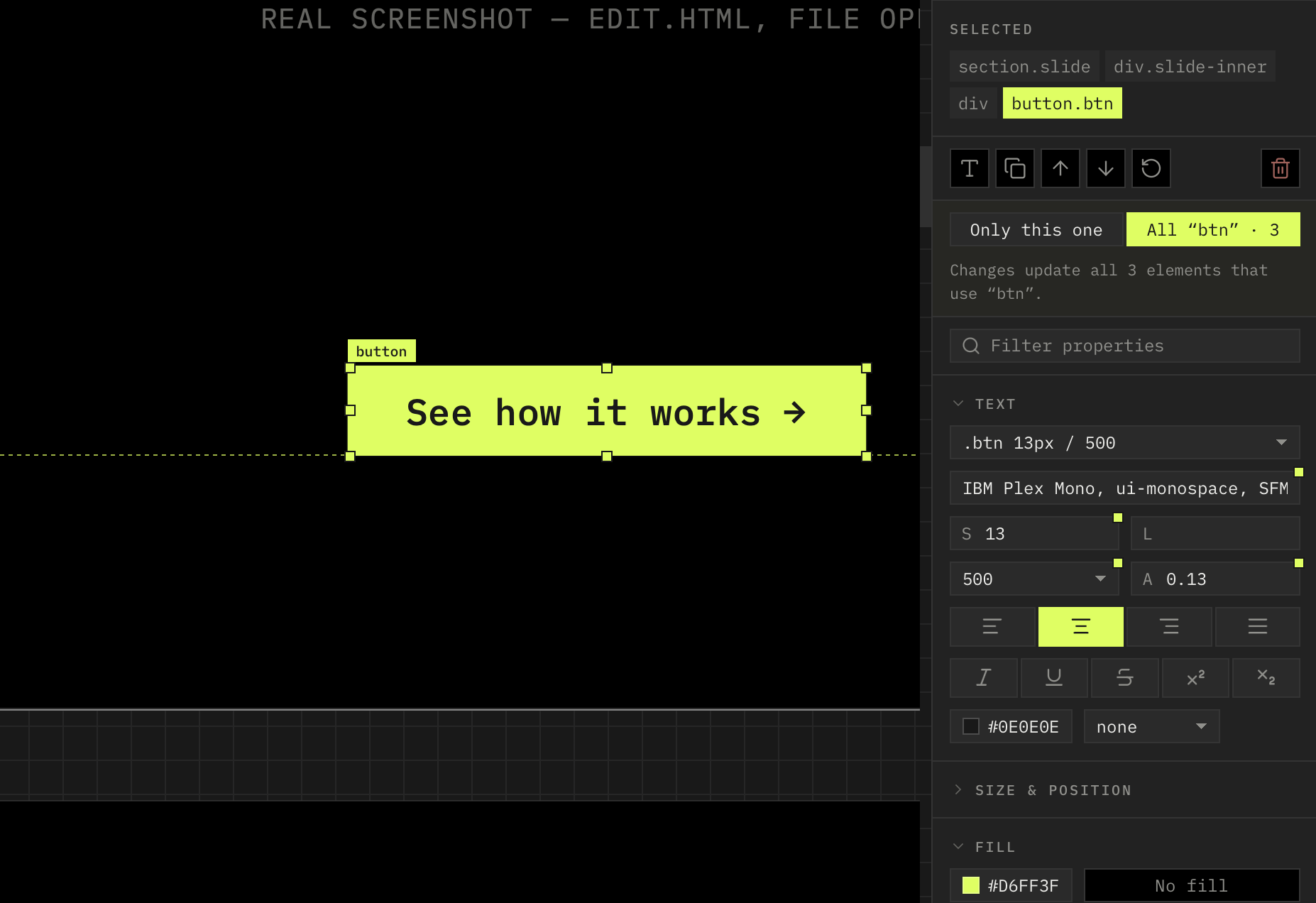
Most pages reuse the same style in a lot of places. When you edit something that shares a class, the editor asks: only this one, or all of them? One click updates every card on the page.

Shared style only this one / all
Asking whether to change one element or all of them
Screenshot — shared style promptmedia/shared-style.jpg · 1600 × 1200

Your colours, in one place.

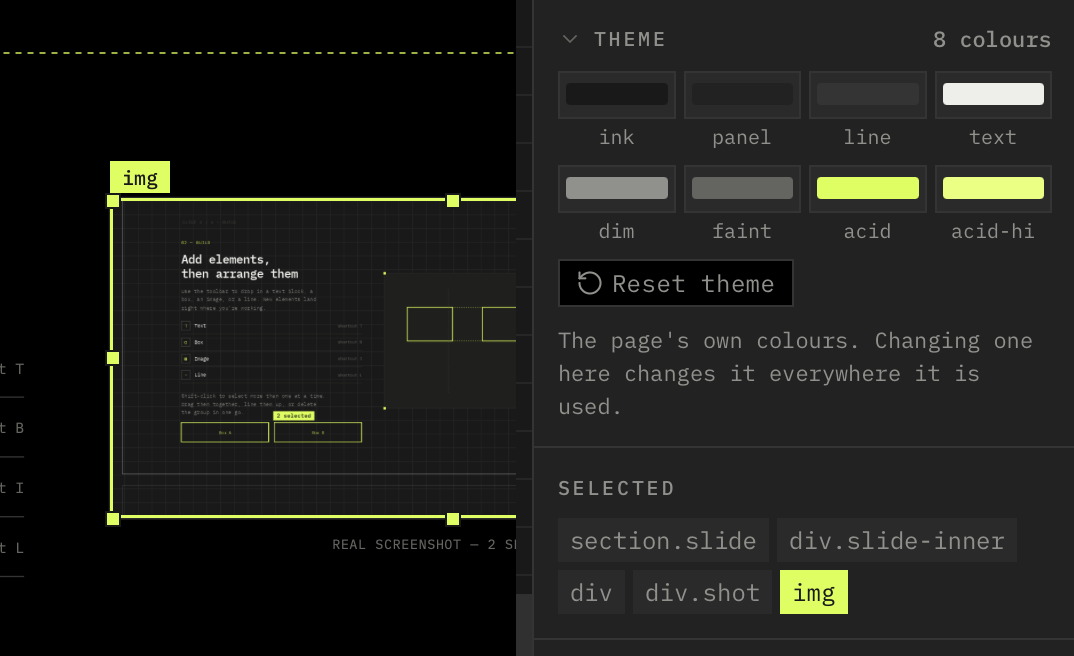
The theme panel collects the colours the page uses. Change one there and it changes everywhere it is used. Recolouring a whole page takes a few clicks, not a find and replace.

Theme colours
The theme colour panel
Screenshot — theme coloursmedia/theme.jpg · 1600 × 1200

Export the page, or every board at once.

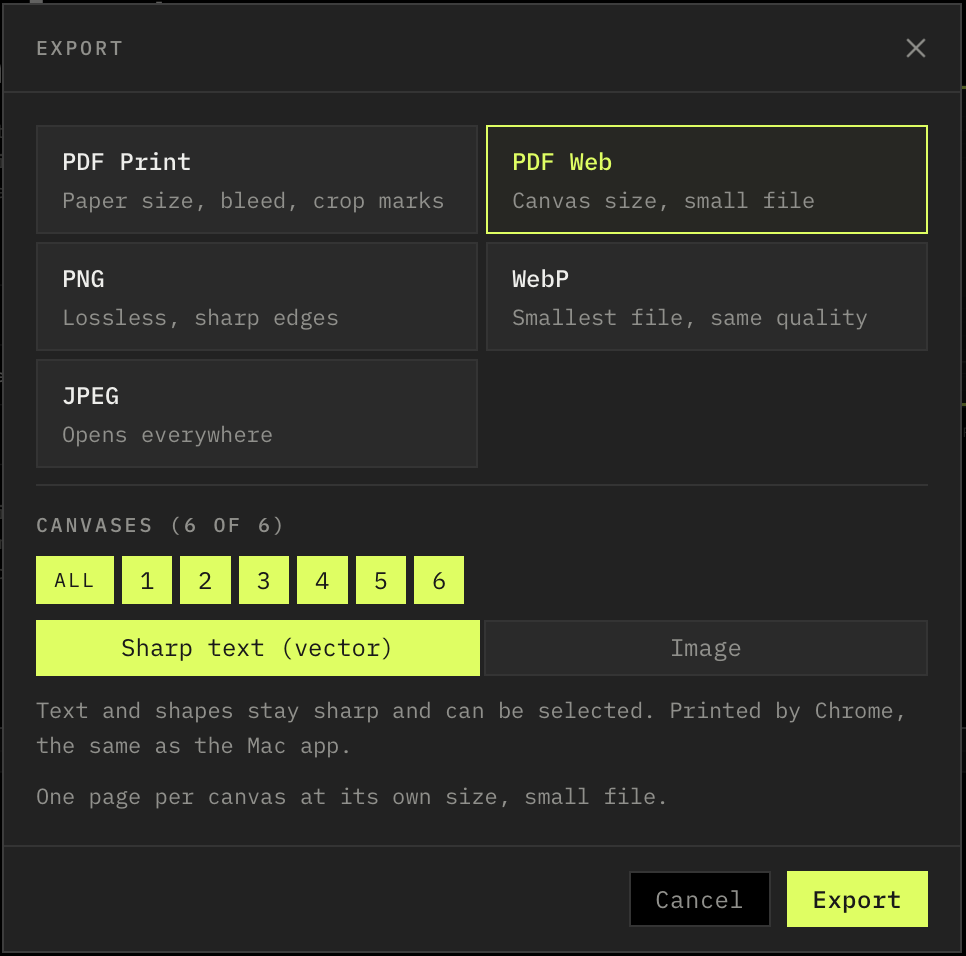
Export to PNG, WebP or JPEG at the size you want. PDFs are printed as real vectors by Chrome, so text stays sharp and selectable. A carousel with ten boards comes out as ten files in one go.

  • Choose which boards to include, and the order they come out in
  • Sharp vector PDFs, not a picture of the page
  • Many files download as one zip
Export options
The export dialog
Screenshot — export dialogmedia/export.jpg · 1600 × 1200

Hit a file size, not a guess.

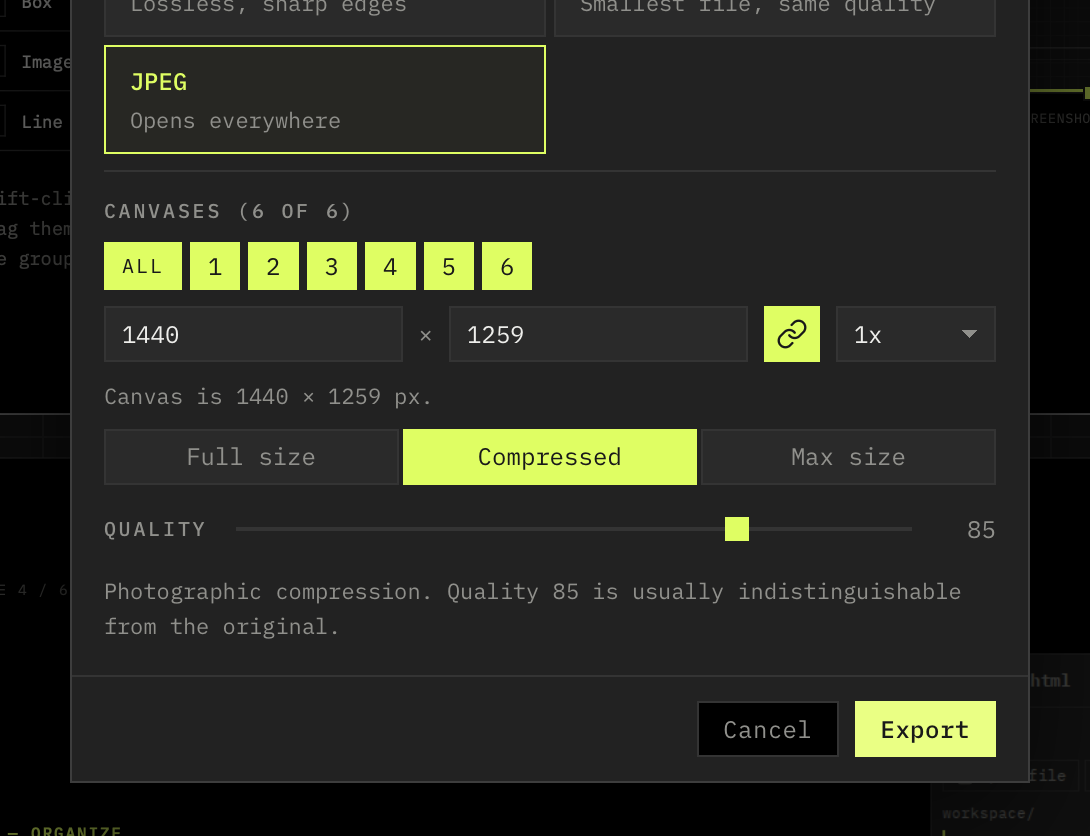
Set the width and height in pixels, or pick a scale. Then choose how hard to squeeze: a quality slider for WebP and JPEG, or give it a size in kilobytes and it works down to fit. Good for a page that has to load fast, or an upload with a limit.

  • Exact pixels, or 1x, 2x, 3x of the canvas
  • Full size, compressed, or a maximum file size in KB
  • The preview tells you what you are getting before you export
Export size and compression
Setting the size and compression for an export
Screenshot — size and compressionmedia/compress.jpg · 1600 × 1200

And the rest

The small things you reach for all day.

Command bar

Press Cmd K for every action and its shortcut. Nothing is buried in a menu you have to remember.

Snapping and guides

Moving and resizing snap to nearby edges and centres, so things line up without you nudging pixels.

Move freely, or in the flow

Drag to reorder inside the layout. Hold Alt to lift an element out and put it exactly where you want.

Layers

The whole page as a list. Hide, lock and rename anything. Click a row to select it on the page.

Select more than one

Shift-click or drag a box to select several elements and change them together. Alt-click picks the parent.

Nothing gets lost

Your work is copied every few seconds, and the Versions panel lists those copies and every save.

Undo that works

Every change is recorded step by step, so undo and redo go back exactly as far as you expect.

Linked files

If the page needs a stylesheet, a font or an image that is missing, it tells you and asks for it instead of quietly breaking.

Add things

T text, B box, I image, L line. They land where you click.

Who it's for

Anyone who makes things in HTML now.

Designers using AI

You can get a page out of a prompt. Fixing the last ten per cent by prompting is the slow part. Click it and change it in a minute.

Studios and teams

Decks, carousels, one-pagers and reports live as HTML. Change the copy, change the colours, export the files, send it.

Developers

A quick way to push a layout around without touching the code, then read the diff afterwards. It stays plain HTML.

Questions

What people ask.

Does my file get uploaded anywhere?

No. The browser opens the file you pick and everything happens on your computer. Nothing is sent to a server. The one exception is a sharp PDF on the website, which is printed by Chrome in the cloud; the print dialog does it locally if you would rather.

What does it add to my HTML?

Nothing. The saved file is the same file with your changes in it. No framework, no build step, no editor markup left behind.

Will it work on the page I already have?

If it is a normal HTML file, yes. It keeps the structure that is there instead of rebuilding it. Pages that are drawn entirely by JavaScript after loading are the exception.

Do I need to know CSS?

No. The panels are named in plain words and you change values by clicking and typing. If you do know CSS, you will recognise everything.

Is there a Mac app?

Yes, and it is coming to more people soon. It opens a whole folder, saves the file in place and keeps a backup every time.

What does it cost?

Nothing to try. Open the editor, open a file and use it.

Ready when you are

AI writes it.
edit.html finishes it.

Open a file and click something. That is the whole demo.

Let's test